Super Simple Image Replacement Dashboard for Non-Profits
6 min read · Written on January 4, 2026

The Image Replacement Dashboard within NEST is built to make website management easier for non profits that do not want to depend on developers for every small change. Once your Cloudflare account is connected, this feature lets you update images on your website directly from NEST in a few clicks.
click... click... done!
This is part of NEST’s larger goal of bringing practical, reliable technology to non profit organizations so teams can move faster and stay focused on their mission instead of technical overhead.
What this dashboard does
Your website images already live on Cloudflare. The Image Replacement Dashboard gives you a clean, simple interface inside NEST to view those images, preview them, and replace them when needed. You do not touch code, hosting panels, or deployment pipelines. Everything happens from one place.
When you replace an image, NEST automatically takes care of image optimization, size limits, and cache updates. This means your website stays fast, consistent, and up to date without extra work from your side.
Why this matters for you?
Non profits often work with limited time, budgets, and technical resources. Small changes like updating a payment icon, replacing a logo, or fixing an incorrect image should not require waiting days for external help.

This dashboard gives non profit teams direct control. You can make changes when you need them, see results immediately, and move on. It also reduces operational risk because the system is designed to prevent layout issues and performance problems.
From a technology perspective, this means fewer manual processes, fewer dependencies, and a more resilient setup for your organization.
How image replacement works in practice
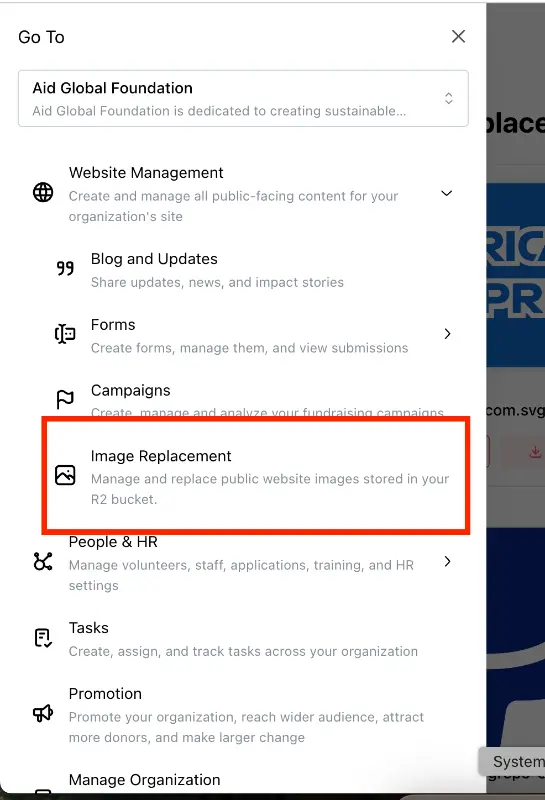
Step 1: Open the Image Replacement Dashboard
Open NEST and go to the Image Replacement Dashboard. You will see all images currently used on your website. Click on any image to open a preview and view basic details like the file name and file size.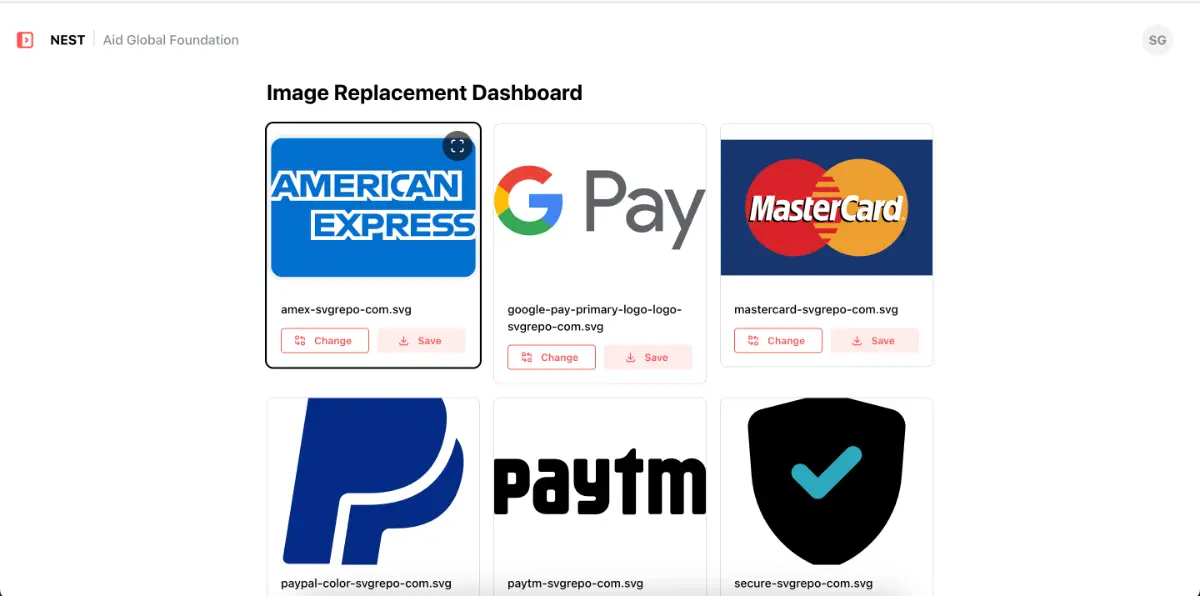
Step 2: Choose the image you want to replace
Once you have identified the image, click the Change button. This opens the upload screen where you can select a new image from your computer.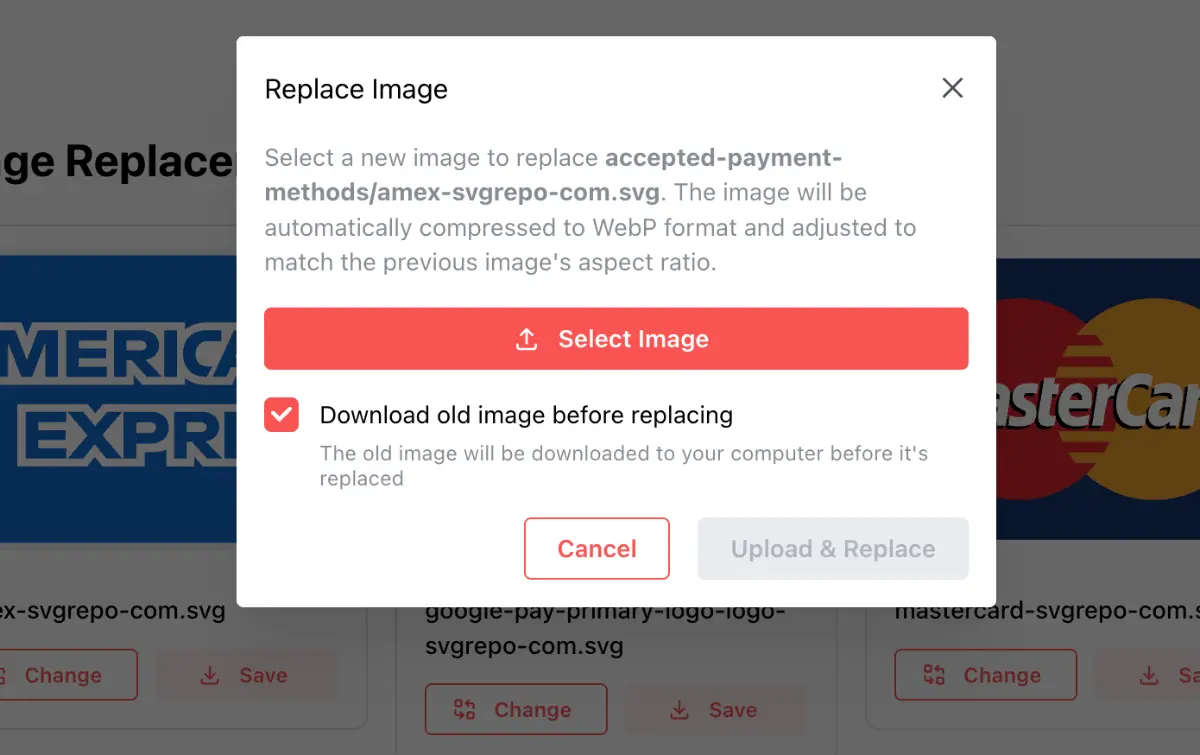
Step 3: Upload the new image
Upload the new image you want to use. NEST automatically compresses it to the best possible quality and ensures the final file size does not exceed 100 KB. You do not need to resize or optimize the image yourself.
Layout protection is applied automatically. NEST checks that the new image has a similar shape to the old one. Only up to a 10 percent variation is allowed. This prevents stretched images, broken layouts, or misaligned sections on your live website. If the image does not fit, you will be asked to upload a better suited version.
Before the replacement happens, NEST gives you the option to download the existing image. This option is enabled by default so you always have a backup. You can uncheck it if you do not need the old image.
Step 4: Save and publish the change
Once the upload is confirmed, NEST replaces the image and automatically clears the Cloudflare CDN cache for that file. This ensures the updated image appears on your website immediately, even if your site uses long cache durations.
In most cases, the change reflects instantly. In rare cases where Cloudflare cache takes longer to clear, NEST will show a warning and guide you on what to do next.
What to expect after uploading
In most cases, the updated image appears on your website right away. In rare situations, Cloudflare may take some time to fully clear the cache. If this happens, NEST shows a warning so you know what is going on.
You can either wait for the cache to clear automatically or contact NEST support and we will take care of it manually. No action is required from your side beyond that.
Common ways non profits use this feature
Teams use the Image Replacement Dashboard to update payment method icons, refresh logos, correct mistakes on live pages, and roll out campaign specific visuals without redeploying the website. It is especially useful when timing matters and changes need to go live quickly.
Frequently asked questions
Do I need technical knowledge to use this?
No. This feature is designed for non technical users managing non profit websites.
Will this affect my website performance?
No. All images are automatically optimized and compressed for performance.
Can I recover the old image later?
Yes. You can download the previous image before replacing it. This is enabled by default.
Why is cache clearing required?
Your website uses Cloudflare caching to stay fast. Clearing the cache ensures changes appear immediately.
Is this secure?
Yes. All credentials are encrypted end to end and access is limited strictly to image and cache related operations.
I can't see the site updated on my device, what to do?
Since the browsers also cache images, you might need to hard refresh on your mobile browser or desktop (ctrl+shft+R for windows orcmd+shft+Rfor mac) browser to clear their cache. If you are still not seeing the updated images, please contact NEST support, or wait for some time (usually a few hours to a few days)
One important thing to keep in mind when uploading images
When you replace an image, it is important that the new image has roughly the same shape as the old one. You do not need to understand technical terms to do this correctly.
Here is a simple way to think about it.
If the existing image is tall and narrow, for example something like 100 pixels wide and 500 pixels tall, then the new image should also be tall and narrow. It does not need to be exactly the same size, but it should look similar in shape.
For example:
A good replacement would be something like 200 by 1000 or 120 by 600.
A bad replacement would be something like 500 by 100 or a perfect square.
NEST does allow a small variation, up to about 10 percent, so your website layout does not break. If the new image is too wide or too short compared to the original, the system will stop the upload and ask you to use a better fitting image.
A simple rule you can follow is this:
Before uploading, look at the old image and ask yourself if the new one looks similar in shape. If the answer is yes, you are good to go.
You do not need to calculate anything. Just avoid switching tall images with wide ones, or wide images with tall ones.
This check exists purely to protect your website design and ensure everything continues to look clean and professional after the update.
tl;dr
The Image Replacement Dashboard brings practical technology to non profit website management. It removes friction, reduces dependency on developers, and gives teams confidence to manage their own content. Once Cloudflare is connected, updating website images becomes a simple, safe, and routine task inside NEST.